
Free for personal use · Windows 11 · Mac preview

Your AI assistant,
on your own
computer.

Chat with Nook like any assistant. Ask for a video or a picture and it makes one on your GPU. No account. No credits. Nothing you say leaves your computer.

Windows 11 · about 6 MB · no admin rights · Mac preview

One app

Ask anything.
Make anything, right here.

Open Nook and start talking: a small model downloads by itself in the background, so your first conversation is minutes away. When you ask for a video or a picture, Nook makes it on your GPU, and asks first if that needs a model downloaded.

  1. Chatask, write, explain
  2. Videos from a message“make a video of…”
  3. Pictures from a message“draw me…”
  4. Asks before downloadsyou choose what comes in
  5. Studio and Traindirect clips, teach a look
  6. All on your computeryour GPU, your files

Just ask.
Nook asks before it downloads.

Ask for a picture the way you would ask a friend. If the model it needs is not on your computer yet, Nook says which one and how big it is, and waits for your yes. Then it makes the picture on your GPU and shows it in the conversation. Every result is a file on your computer.

  • Answers in seconds
  • Open models
  • Saved locally

Pictures in the chat,
made on your GPU.

Ask for a picture and Nook writes a rich description of it, then makes it with Z-Image Turbo: sharp, realistic 1024 by 1024 images in eight steps. Not quite right? Say what to change and it makes another. Every picture is saved on your disk.

  • Z-Image Turbo
  • 1024 × 1024
  • Fits an 8 GB card

AI video generation,
on your own GPU.

Ask for a video in the chat, or open Studio to direct clips yourself and queue several. Nook renders locally with Wan and its own realism add-on, without generation credits or added watermarks. A 2-second clip takes about a minute and a half on an RTX 4060; Train teaches the model a look from your own clips and photos.

  • Wan 2.1 1.3B · 14B
  • Wan 2.2 5B · A14B
  • From the chat or Studio
  • Train your own look
Video

A red paper boat floats on a calm pond

Wan 2.1 1.3B · 832 × 480 · 16 fps

Your prompts and files,
on your PC.

Your conversations, prompts and everything Nook makes stay on your computer. The chat model and the video and picture models run here, so once they are downloaded Nook works offline. Nook connects for model downloads, updates and an optional daily usage count that excludes your messages and creations. You can turn that count off in Settings.

  • Works offline once models are in
  • Source code is public
Things to ask

Start with a question.
Keep going from there.

Ask for an explanation, a draft or an idea, then turn it into a picture or a moving shot in the same conversation. Your conversations and results are kept on your computer.

What will you
make next?

Make a video of a lighthouse at sunset
Making a videoNook hands it to the video modelChat
What Nook can do for you
Answer questionsExplanations in plain words, as short or as deep as you like.
Make a video“Make a video of…” and it renders on your GPU.
Make a picture“Draw me…” and it appears in the chat.
Write for youMessages, notes and first drafts to edit.
Direct in StudioWrite the prompt yourself and queue several clips.
Train a lookTeach the video model from your own clips and photos.
Try another takeAdjust your prompt and run the step again.
Keep your creationsOpen the images and clips saved on your disk.
Open models

The model for your idea.
The fit for your GPU.

Nook’s chat model comes in by itself, about 1.1 GB. The video and picture models come in when you first ask for one, after Nook has said how big they are and whether they fit your GPU.

Video modelsWan 2.1 & Wan 2.2
From a prompt to a moving shot

Start with Wan 2.1 1.3B for short clips. Explore larger Wan models when your hardware has room. Image-to-video support depends on the model.

Explore local AI video generation →
Picture modelZ-Image Turbo
From a sentence to an image

Sharp 1024 by 1024 pictures from a chat message. A one-time 6.7 GB download that fits an 8 GB card; Nook asks before it starts.

Explore local AI image generation →
Chat modelQwen3 1.7B
Ready minutes after you install

A small, quick model that answers in seconds, downloaded in the background on the first start. It runs on your card, and on the processor while a video is rendering.

Find your hardware starting point →

More room to create.
Fewer things in the way.

GENERATION CREDITS0

Try another prompt without spending another credit.

Your hardware supplies the compute.
MESSAGES UPLOADED0

Your conversations and prompts stay on your machine.

The models run on your computer.
ADDED WATERMARKS0

Keep the images and clips you create without a Nook watermark.

Check each model’s licence for usage rights.
APP FOR IT ALL1

Chat, videos and pictures in the same desktop app.

Download your models, then work offline.
Technology

Make the most of
the GPU you already have.

Nook runs the local engines behind the chat, the pictures and the videos, and picks the build that suits your card. Install the app and start talking. No admin rights or WSL needed on Windows.

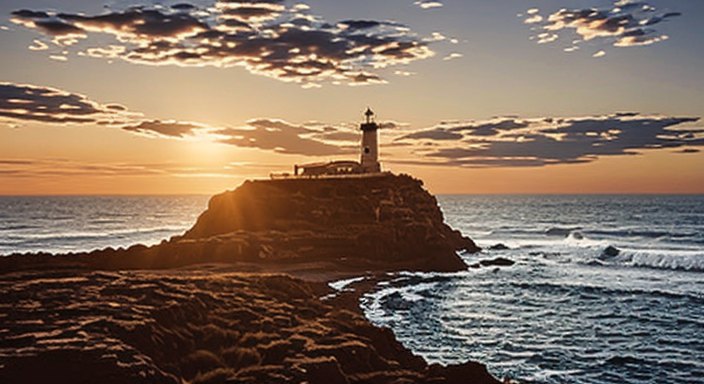
A lighthouse on a rock in a rough sea at sunset
storm.pngMade locally
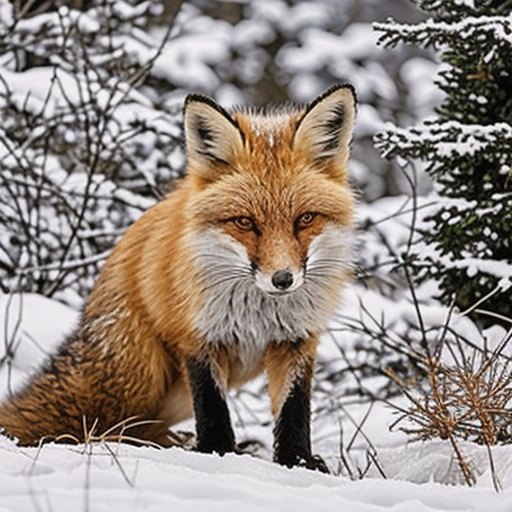
A red fox in the snow
fox.png512 × 512
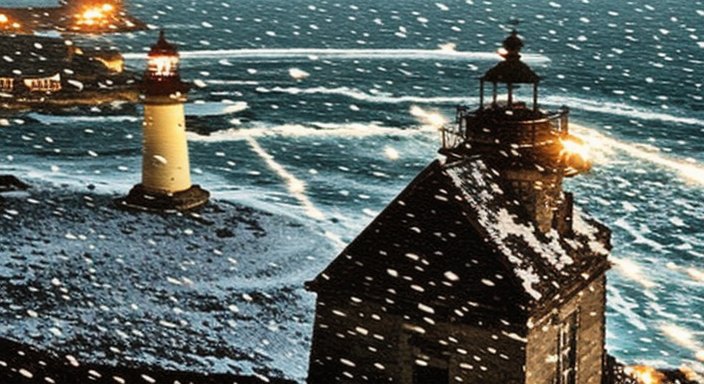
The lighthouse again, changed to a snowy evening
snowy.pngAnother take
Made in Nook on an 8 GB card
WanText-to-video, with Nook’s realism add-on
Qwen3 on llama.cppThe chat model, on CUDA, Vulkan or the processor
Z-Image TurboPictures from a chat message
TrainA look for the video model, from your own clips
stable-diffusion.cppThe engine behind image and video generation
Local filesYour results, ready to open and use
NVIDIA, 8 GB and upThe chat runs on almost any PC; 8 GB is a practical starting point for pictures and short video clips. Check each model’s requirements; larger models and settings need more memory.
AMD and IntelSupported engines can use Vulkan. Compatibility and performance vary by model and card; NVIDIA is the recommended starting point for generation.
Apple silicon, in previewM1 or later on macOS 13.3 and up, on the GPU through Metal. 16 GB of memory or more is best.

Questions,
answered.

Short answers to the things people ask first. Anything else: hello@usenook.ai.

What is Nook?

Nook is an AI assistant that runs on your own computer. Chat with it to ask questions or draft text, and ask it for a video or a picture to have one made on your GPU. Studio lets you direct clips yourself, and Train teaches the video model a look from your own clips. Explore the video generator and image generator.

How do I get started?

Download Nook for Windows 11 or the Apple silicon Mac preview from the download section. Install the app and start chatting: Nook downloads its small chat model by itself in the background. When you first ask for a video or a picture, it asks before downloading the model it needs. Model downloads are separate from the small app installer.

What GPU do I need for local AI generation?

An NVIDIA GPU with 8 GB of VRAM is a practical starting point on Windows 11 for images and short clips with smaller models. Larger models, higher resolutions and longer clips need more memory. AMD and Intel support uses Vulkan where available. The Mac preview requires Apple silicon and macOS 13.3 or later; 16 GB of unified memory or more is recommended. Check each model’s requirements before downloading.

Which image and video models can I use?

Nook chats with Qwen3 1.7B, makes pictures with Z-Image Turbo and videos with Wan 2.1 and Wan 2.2. Memory requirements vary by model; Nook tells you whether one fits your GPU before you download it.

Are my prompts, images and videos private?

Local generation runs on your computer; your prompts, source images and results are not uploaded for processing. Nook connects for model downloads and updates, and can send an optional daily count of tools used. That count excludes prompts and creations and can be switched off in Settings. See the privacy policy for all app and website data handling.

Can I generate images and videos offline?

Yes, once the app and the model’s required files are downloaded. Local generation does not require an internet connection. Downloads and updates do.

Are there credits, subscriptions or watermarks?

Nook is free for personal use. Local image and video generation does not use generation credits, and Nook does not add a watermark to your output. Your own hardware supplies the compute. The app’s terms and each model’s licence apply.

Can I use my generated images and videos commercially?

Check both Nook’s terms of use and the licence for the specific model you use. Commercial rights vary by model and use case; generating locally does not override those terms. Review your output and any third-party rights before publishing.

Ask your first question.
Make your next video.

Download Nook and start chatting on your own computer. Free for personal use on Windows 11, with a preview for Apple silicon Mac. No account or generation credits required.

Windows: Nook 0.5.52 · 5.4 MB · SHA-256 cda142b1ce72…

Mac preview: Nook 0.5.21 · 12.9 MB · Apple silicon, macOS 13.3 or later · SHA-256 b26b200db472…

On Windows, SmartScreen may pause the installer: choose More info, then Run anyway. On a Mac, drag Nook to Applications and open it; the preview isn’t notarized yet, so the first time choose Open Anyway in System Settings › Privacy & Security. Trouble installing? Write to hello@usenook.ai.